Logitech G-Hub Scripting Guide
- 1. Setup
- 2. Initialization
- 3. Walkthrough
- 4. Troubleshooting
Setup
This section will walk you through the essential setup steps to ensure your scripts run flawlessly. Following these steps will help you avoid common issues and ensure a smooth scripting experience.
Run G-Hub as an Administrator
The first and most crucial step is to run G-Hub as an administrator. This ensures that the software has full access to your system, which is necessary for the proper functioning of scripts.
ⓘ Why is this important? Running G-Hub as an administrator helps to avoid
frustrating "script not running" errors.
Disable On-board Memory Mode
Next, you need to disable the on-board memory mode in your mouse settings. When this mode is enabled, your mouse uses its internal memory instead of the software settings, which will prevent your macros from loading correctly.

How to disable it:
- Open Logitech G-Hub.
- Locate the On-board Memory Mode icon.
- Click the microchip icon.
By turning this off, you force G-Hub to manage everything, ensuring your scripts are loaded and executed correctly.
Configure DPI Settings
To maintain consistent sensitivity and avoid unexpected speed changes during script execution, it's important to streamline your DPI settings.

What to do:
- If you have multiple DPI stages configured, reduce them to just one.
- Lock the single DPI stage to prevent any changes.
This will ensure your sensitivity remains constant, providing a stable environment for your scripts.
Clear Button Assignments
Before you start scripting, it's a good practice to clear any default or leftover bindings on the buttons you plan to use for your scripts.
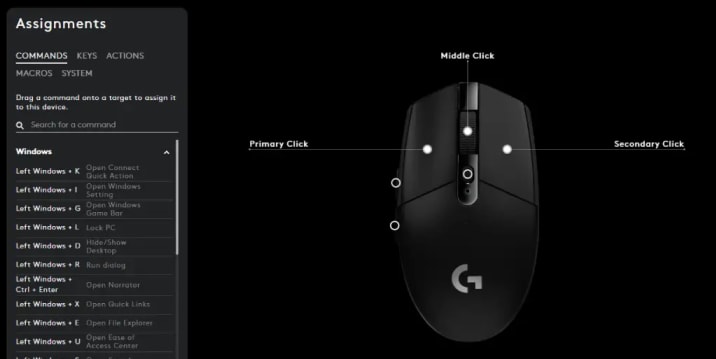
Why is this necessary? By unassigning the buttons, you guarantee that your custom macros take priority and there are no conflicts with existing bindings.
Use the Desktop Profile
Finally, make sure you are working in the desktop profile. G-Hub creates profiles for each game by default, but for scripting tutorials and general use, the desktop profile provides a more consistent and straightforward environment.

How to check:
- Go to the settings in G-Hub.
- Navigate to the Presistent Profile section.
- Ensure that the "Desktop" profile is selected and active.
Initialization
This section will walk you through the process of adding a custom LUA script to your Logitech G-Hub software. This allows you to customize the functionality of your Logitech gaming peripherals.
Prerequisites
Before you begin, please ensure you have the following:
- A compatible Logitech gaming mouse or keyboard.
- The Logitech G-Hub software installed on your computer.
How to Add a Custom LUA Script in Logitech G-Hub
Follow these steps carefully to add your custom script:
- Open Logitech G-Hub and Select Your Profile
- Launch the Logitech G-Hub software.
- Ensure you are in the Desktop Profile.
- Click on the profile dropdown menu at the top of the window and select Manage Profiles.

-
Navigate to the Scripting Interface
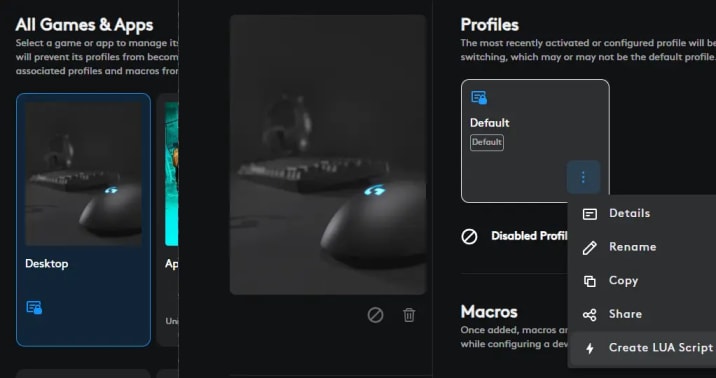
- Select the Desktop profile, then click the ellipsis icon.
-
Create a New Script
- From the dropdown menu, click the Create a New Script button.
- G-Hub will open a script editor with some default boilerplate code.
-
Clear the Default Code
- Select all of the default code in the editor and delete it.
-
Paste Your Custom Script
- Now, paste your custom LUA script into the empty editor. You can do this by going to
Edit > Pasteor by using theCtrl + Vkeyboard shortcut.
- Now, paste your custom LUA script into the empty editor. You can do this by going to
-
Save and Run the Script
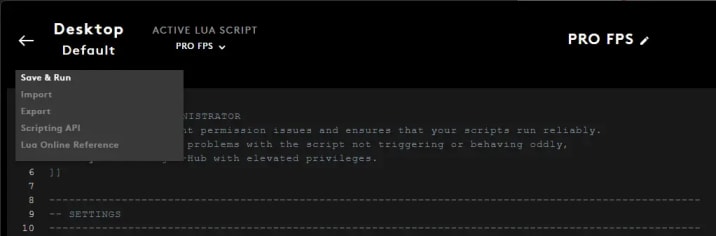
- Finally, go to the Script menu and click Save and Run. This will activate your custom script.
Important Notes
- Saving and Reloading: Any time you make a change to your script, you'll need to save it and run it again to apply the changes. You can do this by clicking Save and Run from the menu or by using the
Ctrl + Skeyboard shortcut. - Troubleshooting: If your script isn't working as expected, double-check the code for any errors and make sure you've followed all the steps correctly.
Walkthrough
This section will walk you through the script's functionalities, settings, and how to effectively customize it for your preferences and various in-game weapons.
Script Versions
Our script comes in two versions:
- Lite: Ideal for games with simpler recoil patterns.

Related
Lite FPS Logitech No Recoil Script (G-Hub Mouse Anti Recoil Macro)
view details
- Pro: Designed to handle advanced weapon recoil patterns.

Related
Pro FPS Logitech No Recoil Script (G-Hub Mouse Anti Recoil Macro)
view details
Each section of the script is meticulously described, ensuring that even new users can easily understand and adapt it.
Key Script Settings
Let's explore the essential settings you'll interact with to customize your recoil control:
1. Button Arg
This setting determines which mouse button activates or deactivates the recoil script.
- Function: Starts/stops the recoil compensation while you hold or click the designated button.
- Default:
1(Left mouse button).
2. Activate Key
This feature uses a keyboard lock LED (like Caps Lock or Num Lock) as a master enable/disable switch for the script.
- Function: When the assigned key is on, recoil compensation is active. When off, your mouse clicks behave normally.
- Default:
Capslock.
3. Profile Cycle Button
This button allows you to cycle through your weapon profiles.
- Function: Set this to an unused thumb button on your mouse to switch weapon profiles on the fly during gameplay.
4. Track Movement
This setting controls how your mouse cursor behaves after a recoil sequence.
true: The script will attempt to return your mouse to its original position after the recoil sequence finishes. Use this for consistent aim reset.false: The cursor remains where it ends up after the recoil sequence. Use this if the return motion causes issues in your game.
5. Recoil Delay
This determines the waiting period between each small mouse movement during compensation.
- Lower values: Result in faster, more aggressive recoil compensation.
- Higher values: Lead to slower and smoother compensation.
6. Counter Limit
This setting caps the number of internal steps the script attempts for recoil compensation.
- Function: Think of it as the maximum length of the recoil burst the script will compensate for.
7. Start After Counter
This allows you to ignore initial shots before recoil compensation begins.
- Function: If your first one or two bullets have negligible recoil, set this to
1or2to skip compensation during those initial shots.
8. Smoothing Steps
This setting splits each pattern entry into multiple sub-movements for smoother control.
- More steps: Results in smaller increments per movement and smoother overall motion.
- Fewer steps: Can lead to chunkier movement, which might be truer for very fast-firing weapons.
Weapon Profiles
Weapon profiles are per-weapon patterns that define how the script compensates for recoil. Each profile is a Lua table with specific keys:
1. Name
- Function: A human-readable label used when cycling through profiles.
2. Bullets per Entry
- Function: Specifies how many consecutive bullets each
vertical/horizontalentry in the pattern covers. - Important: Must be an integer greater than or equal to
1. If missing or invalid, it defaults to1.
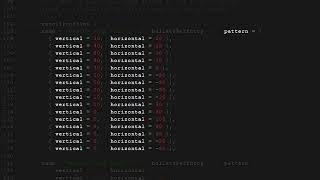
3. Pattern
- Function: An ordered array of
vertical=Xandhorizontal=Yentries. Each entry is applied for the number of shots defined bybullets per entry.- Vertical Conventions:
- Positive values: Move mouse down (counters upward recoil).
- Negative values: Move mouse up.
- Horizontal Conventions:
- Positive values: Move mouse right.
- Negative values: Move mouse left.
- Vertical Conventions:
Adding a New Weapon Profile
- Copy and Paste: Duplicate an existing profile block in the script and paste it below the last one.
- Change Name: Update the
namefield to the desired weapon name. - Set Bullets per Entry: Define how many bullets each pattern step should represent.
- Edit Pattern Entries: Adjust the
verticalandhorizontalvalues for each stage to match the weapon's recoil. More stages offer finer control. - Save and Cycle: Save the script and use your designated profile cycle button in-game to switch to the new profile.
Tuning Your Recoil
To effectively tune your weapon profiles:
- Enter Training Mode: Go into your game's training mode and stand a few meters from a wall to clearly see your bullet impacts.
- Observe Bullet Pattern: Fire at the wall.
- If shots are climbing too high, increase the vertical value.
- If shots are going too low, decrease the vertical value.
- If shots are drifting right, make the horizontal value more negative.
- If shots are drifting left, make it more positive.
- Repeat and Refine: Continuously fire at the wall, check your bullet pattern, and adjust the numbers until the spray flattens out and feels natural.
When you set up recoil patterns in the script, you’re basically telling it how much to pull down (vertical) and to the left/right (horizontal) for each bullet fired.
In the weapon entry, you’ll see something like this:
{ name = "NAME THE WEAPON 1", bulletsPerEntry = 2, pattern = {
  { vertical = 32, horizontal = -8 }, -- (control bullets 1 and 2)
  { vertical = 24, horizontal = 6 },  -- (control bullets 3 and 4)
  { vertical = 26, horizontal = -4 }, -- (control bullets 6 and 7)
  { vertical = 26, horizontal = 0 }   -- (control bullets 8 and 9)
  -- (you can add more if needed...)
}}
-
bulletsPerEntry = 2means that each line in the pattern applies to 2 bullets. → In this case, the first{ vertical = 32, horizontal = -8 }will control bullets 1 and 2. → The next line controls bullets 3 and 4, and so on. -
Adjusting Vertical (up/down recoil): → If your shots are still climbing upwards → increase the vertical value. → If your shots are being pulled down too much → decrease the vertical value.
-
Adjusting Horizontal (side recoil): → If the shots are drifting to the right → make the horizontal value more negative. → If they’re drifting to the left → make the horizontal value more positive.
ⓘ Set
bulletsPerEntry to 1 to achieve higher precision, which is ideal
for games such as CS2. Higher values are more suitable for arcade-style FPS
games where precision is less critical.Repeat the process: fire at the wall, check where the bullets land, then adjust the numbers until the spray flattens
G-Hub Console Feedback
Logitech G-Hub provides live feedback in the console window, which is crucial for monitoring your script.
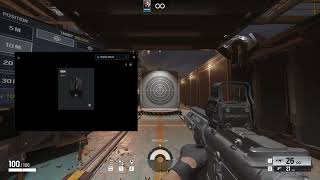
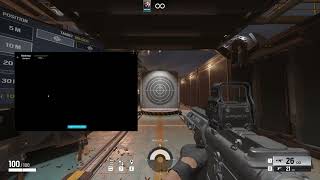
- Opening the Console: Go to the top menu, click View, then Console.
- Status Box: The script will display a status box in the console:
- Status:
- Red: Recoil is off.
- Green: Recoil script is active.
- Profile: Shows the currently active weapon profile. This updates when you press your profile cycle button.
- Status:
Troubleshooting
Logitech no recoil script not working? Common issues and their solutions when working with Logitech G-Hub script. From admin settings to Lua macros, get your recoil script working again!
Disable Logitech G-Hub at Startup and Restart Your PC
- Open Task Manager: Right-click your taskbar and choose Task Manager.
- Go to Startup Apps: In Task Manager, click the Startup tab.
- Disable G-Hub: Find the Logitech G-Hub entry. If it’s enabled, right-click it and select Disable.
- Restart PC: Even if it was already disabled, reboot your computer. A full restart can clear weird startup bugs.
Disabling G-Hub from auto-launch and restarting can clear up lockups. Many gamers report that a fresh reboot after disabling startup solved their “script not working” issue. It sounds simple, but sometimes Windows needs a clean slate for G-Hub to behave.
Run Logitech G-Hub as Administrator
- Find the G-Hub app: Click your Start menu, type Logitech G-Hub, but don’t open it normally.
- Run as Admin: Right-click the G-Hub app and choose Run as administrator. When prompted, click Yes.
Running G-Hub in admin mode ensures it has all the permissions it needs. This single step has helped tons of players fix their Logitech scripts. It avoids permission roadblocks that could be stopping your macro from activating in-game.
Turn Off Steam’s “Run as Administrator” (if you use Steam)
- Locate Steam: Find your
Steam.exe(usually in C:\Program Files (x86)\Steam\). - Change Properties: Right-click
Steam.exe, go to Properties → Compatibility. - Uncheck Admin: Make sure Run this program as an administrator is unchecked. Click Apply and OK.
- Restart Steam: If Steam was open, close it and relaunch normally.
Some users discovered that if Steam is running as admin, Logitech macros only fire on the desktop and not in-game. Disabling admin for Steam can let G-Hub’s macros work correctly while you play.