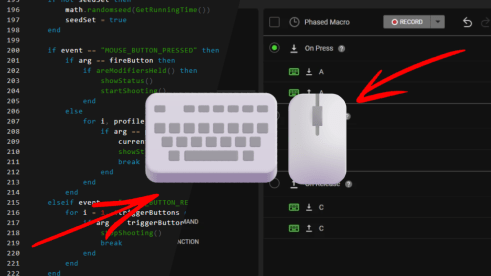
If you have ever tried to put a whole combo on one mouse button, you have probably met Logitech G HUB or Razer Synapse. Both can do it. Both also come with the same catch: the macro only works properly with that brand's hardware.
BuffKey is a different kind of app. It works with whatever keyboard and mouse Windows already recognises, so the macro stays with your game instead of your gear. Logitech, Razer, or a mix of both on the same desk - it does not matter.
This guide explains what each tool does in plain English, where they get frustrating, and how one simpler app covers both.
First, what is a macro?
A macro is a short list of things your keyboard and mouse can do, saved so you can replay them with one button.
For example, you might want one button that:
- presses
3to switch weapons - waits a split second
- presses
1to use a skill
Instead of doing all of that by hand every time, you press one button and the app does the steps for you.
That is the whole idea. Apps usually call a saved sequence like this a macro, and they keep your macros and button choices together in a profile - think of a profile as a saved setup for one game.
The differences between G HUB, Synapse, and BuffKey are in how you build that list - and whether it still works when you change keyboards.
The short version
| Logitech G HUB | Razer Synapse | BuffKey | |
|---|---|---|---|
| Works with | Logitech gear | Razer gear | Any keyboard and mouse |
| How you make a macro | Record presses or write a script | Record your presses | Add steps to a list |
| Coding needed | Only for scripts | No | No |
| Where the macro lives | A G HUB profile | A Synapse profile | A BuffKey profile |
| Price | Free with the device | Free with the device | Free trial, then paid plans |
Logitech G HUB scripts, explained simply
G HUB is the app that controls Logitech mice and keyboards. It handles lighting, mouse speed, button assignments, and device updates.
G HUB scripts are a more advanced feature. A script is a small program written in a coding language called Lua. Instead of recording your button presses, you write instructions for the mouse or keyboard to follow.
That makes scripts very powerful. It also means they are aimed at people who are comfortable with code. Most people find a script online, paste it into G HUB, and hope it works. When it does not, it is hard to know why.
Three things tend to frustrate new users:
- It only works with Logitech gear. The script listens to buttons on a Logitech device. Change to another brand and there is nothing for it to react to.
- The script lives inside G HUB. It is not a simple file you can keep next to your game. If G HUB changes or the profile gets lost, the script can go with it.
- One small mistake can stop everything. A wrong key name or a missing line can make the script do nothing at all, with no clear error message.
None of that makes G HUB bad. It is just built for people who want to tinker.
Razer Synapse macros, explained simply
Synapse is Razer's version of the same idea. Its macro tool is friendlier at the start: you press record, do the combo once, and stop. Synapse saves what you did and lets you put it on a Razer button.
The basic steps look like this:
- Plug in a Razer keyboard or mouse.
- Open the Macro section and click New Macro.
- Press record, do your combo, then stop.
- Clean up any accidental presses and adjust the pauses.
- Assign the macro to a button and choose how it should play.
- Test it in Notepad before trying it in a game.
Synapse also gives you three playback options, which are easier to understand than their names suggest:
- Play once: the combo runs one time each press. Best for weapon swaps and skill combos.
- Toggle: press once to start repeating, press again to stop. Best for farming or crafting loops.
- Hold: repeats while you hold the button. Best for actions you want to keep doing.
The first recording usually is not the final one. Hand timing is rough, so expect to spend a few minutes fixing pauses.
Where it gets annoying:
- The macro belongs to the Razer device. Switch to a different keyboard and you may have to set the assignment up again. Switch brands and Synapse cannot help.
- Fixing one step can mean recording again. Synapse is built around recording, not around editing a tidy list of steps.
- It is a big app for a small job. Synapse needs a Razer account and runs in the background, which is a lot of software just to press three keys.
The catch both tools share
G HUB and Synapse are made by companies that sell hardware. Their apps are designed to make that hardware better, so the macro is tied to the device.
That becomes a problem when you:
- buy a new keyboard or mouse
- use a laptop keyboard with a mouse from another brand
- want the same setup on a second computer
- share a macro with a friend who owns different gear
- just want to change one pause without redoing everything
The macro is tied to the device, so it is not really yours to move around.
How BuffKey is different
BuffKey is a Windows app for macros and key remapping. It works with any keyboard and mouse that Windows already sees, so there is no list of supported devices and no brand lock-in.
You build a macro as a simple list of steps:
Key 3 - switch weapon
Sleep 40 ms
Key 1 - use skill
Each line is one action. Key presses a key, Mouse Click clicks, and Sleep is a short pause so the game can keep up. You can move steps around, duplicate them, or change a pause by double-clicking it.
The useful parts for a new user:
- No coding required. If you can make a shopping list, you can make a macro.
- Any keyboard and mouse. Use what you already own, including laptop keyboards and budget gear.
- A separate setup for each game. Keep one profile for Minecraft and another for Path of Exile 2, then switch when you switch games.
- One press or repeat while held. Choose click for a single combo or hold for something that repeats.
- Easy testing. F7 tries the macro, F8 turns your buttons on and off, and F11 stops everything if something goes wrong.
- It can run in the background. Close the window and BuffKey stays in the system tray (the small area near your clock), so your game keeps focus.
If you ever want something more advanced, BuffKey has an optional scripting mode. You do not need it to get started.
Moving your old macros over
You do not have to start from zero. You just need to know what the old macro did.
From a G HUB script
- Read through the script, or watch what it does in-game.
- Write down the keys it presses, in order.
- Rebuild those keys as steps in BuffKey.
- Add a short pause wherever the game needs a moment.
- Test it on the desktop, then in your game.
Simple scripts take a few minutes. Very complicated ones may need BuffKey's advanced scripting mode.
From a Synapse macro
- Play the macro once and note the order of the presses.
- Rebuild those presses as steps in BuffKey.
- Copy the pauses you used, then adjust them in-game.
- Put the macro on the same button.
- Test in Notepad first, where you can see exactly what is being typed.
If your macro is not working
Try these in order - they solve most problems:
- Is the app turned on? In BuffKey, press F8.
- Did you save the macro? Unsaved changes are easy to lose.
- Is the right profile active? Each game can have its own setup.
- Is the button already used for something else? Pick a different button, or change the game's own key.
- Does the game run as administrator? If Windows asks for permission when the game starts, BuffKey needs the same permission. Right-click the BuffKey shortcut and choose Run as administrator.
- Is the pause too short? Increase the Sleep by 20-30 ms and try again.
Keep the brand apps for the hardware
BuffKey does not replace G HUB or Synapse completely, and it does not try to. Keep them for lighting, mouse speed, battery level, and device updates.
The simple split is:
- G HUB or Synapse: the device itself
- BuffKey: the macros
One warning: do not put the same button in both apps. They will fight over it, and the macro may fire twice or not at all.
G HUB scripts are great if you enjoy coding and stay with Logitech. Synapse macros are quick if you only use Razer gear. But if you just want one button to do a combo - and you want that to keep working when you change hardware - a simple step-list app is the easier choice.
Build your first macro with the BuffKey guide, or browse the game-specific setups.